Help Center

Notetaker overview

Updated Sep 29, 20266 min read
Available to:
All usersRoles control which account and team settings a person can manage. Your role may vary by organization, team, or group.
Plans:
Standard Plus and Teams PlusFeature access may vary based on your plan, when your account was created, and any add-ons.
View plans

Notetaker provides AI-generated summaries, transcripts, and action items for your recorded meetings. Shareable via email, link, or downloadable TXT file, Notetaker recaps help you stay organized and follow up quickly. 

For example, you can:

  • Share recap videos or meeting notes
  • Ask Callie about your meeting to get quick answers from your meeting transcript
  • Enable recap templates tailored to your role
  • Export transcripts as TXT files to streamline documentation

See a sample recap.

What to expect when Notetaker joins your meetings

  • If you're the host: Notetaker joins your meeting at the scheduled time, asks for recording consent, and starts recording once admitted or confirmed. It appears as a meeting participant on the call.
  • If you're not the host: Notetaker still joins on your behalf, but the host must approve the recording and choose to admit or deny it. You'll be notified if the meeting is being recorded. Notetaker will appear as a meeting participant.

Learn more about what happens when Notetaker joins your meetings.

Understand recording notifications and controls

Notetaker includes built-in features to help everyone understand when a meeting is being recorded and take action if needed.

Recording notifications

When Notetaker starts recording, it posts a message in the meeting chat. This lets all attendees know the meeting is being recorded. Some meeting apps may also show their own recording alert.

Stop recording anytime

Anyone in the meeting can stop the recording by typing /stop in the chat. Attendees can also ask the host or the Calendly user to remove Notetaker. 

If you use the /stop feature, recording can’t be turned back on for that meeting.

Advance notice
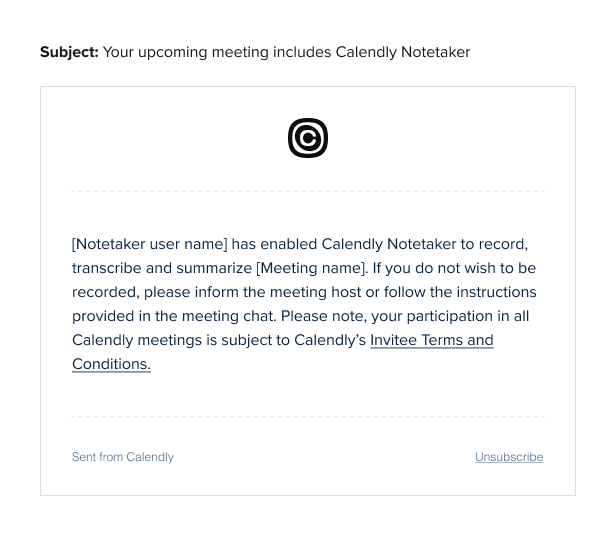
Attendees can be notified before the meeting that Notetaker will join and record.You can turn these email notifications on or off in Settings → Notetaker.

These features help attendees stay informed before and during the meeting. They also give everyone a clear way to stop the recording at any time.

Ready to learn more about Notetaker?

Frequently asked questions

Currently, Notetaker is only available in English.

You can create unlimited recaps each month on Standard Plus and Teams Plus plans.

If Notetaker is no longer available even though you expected access, your organization owner or admin may have disabled it for the organization. Contact them for more information.

When Notetaker first requests permission to record, select the Apply these permissions to all future requests in this meeting option. This approves that Notetaker and prevents additional pop-ups in the same meeting.

This setting lets you approve multiple Notetakers in a single session without repeated approval prompts, while maintaining control over each new meeting's permissions.

Notetaker currently supports meetings held on Zoom, Google Meet, and Microsoft Teams. It does not currently join or record standard phone conversations, audio-only calls, or in-person meetings.

Notetaker records for a maximum of 2 hours per meeting. After 2 hours, Notetaker will drop from the call and provide a recap for the first 2 hours.

Notetaker appears to meeting participants as a Calendly Notetaker participant. Company-specific names, logos, and colors are not currently configurable for the Notetaker participant. Company branding may be applied to supported Calendly booking pages and other branded Calendly experiences, but it does not currently change Notetaker's in-meeting identity.

No. Notetaker creates recaps within your Calendly account and you control who has access to them.

Learn more about sharing your recaps.

In Google Meet and Zoom, some admin settings can block chat messages from non-human participants. When this happens, attendees may not see Calendly Notetaker consent messages or the /stop command response in the meeting chat.

The Notetaker is designed to follow your meeting as it moves between the main room and breakout sessions.

Here’s how it works:

  • The Notetaker will automatically join breakout rooms when invited
  • It will return to the main room when the host closes the breakout sessions
  • While in any room, the Notetaker continues to follow its normal behavior, including leaving if:
    • All participants exit the room
    • There is extended silence

Tips for a smooth experience

  • Have the host close breakout rooms when the session ends
  • If needed, the host can move the Notetaker between rooms at any time

This setup helps the Notetaker stay aligned with how your meeting flows, whether you're collaborating in smaller groups or back in the main session.

Notetaker processes the recorded meeting to create a transcript and recap. If personal conversation or small talk occurs while Notetaker is recording, it may appear in the recording or transcript and may be reflected in the recap.

If a conversation becomes personal, sensitive, or otherwise inappropriate to record, anyone in the meeting can type /stop in the meeting chat to stop recording. You can also ask the host or Calendly user to remove Notetaker. Review and edit the recap before sharing it, and use Notetaker only when your organization permits the recording and processing of the meeting.

Yes. Owners and admins can disable Notetaker for the entire organization.

To learn how, follow the steps in How to remove Notetaker from meetings.

When you move to a different Calendly organization, your Notetaker settings and meeting recaps do not transfer over. 

Recaps stay with the original organization and are no longer accessible after you transfer. Download any meeting recaps you want to keep and re-enable Notetaker after joining the new organization.

Calendly stores user and invitee data in secure U.S. data centers run by Google and Amazon Web Services (AWS).

Learn more

Recaps will stay available for as long as your account exists. They won’t be affected by your subscription status or account activity.

Calendly does not currently comply with HIPAA, GLBA, or similar health and financial regulations. 

Children under the age of 18 should only use Notetaker as a meeting participant, not a customer, and only under the supervision of their parent/guardian or school/educator.  For more information, please review Calendly’s FERPA and COPPA Privacy Notice.

Calendly’s products, including Notetaker, have been designed to be compliant with GDPR.  As stated in Calendly’s Data Processing Addendum, Calendly only processes Customer Personal Data, including Notetaker recordings, on behalf of and in accordance with the customer’s instructions. 

Notetaker includes built-in features to help everyone understand when a meeting is being recorded, both before and during the meeting, and stop the recording if needed.  However, customers are ultimately responsible for obtaining consent to record.  To learn more about our built-in features, please see Notetaker overview.

Was this article helpful?
Let us know so we can improve our content.

Related articles