When your work runs on meetings, you need to make the most of every conversation. And to do that, you need to keep track of discussion topics, decisions, and action items — all while staying focused. That can be a lot to juggle.
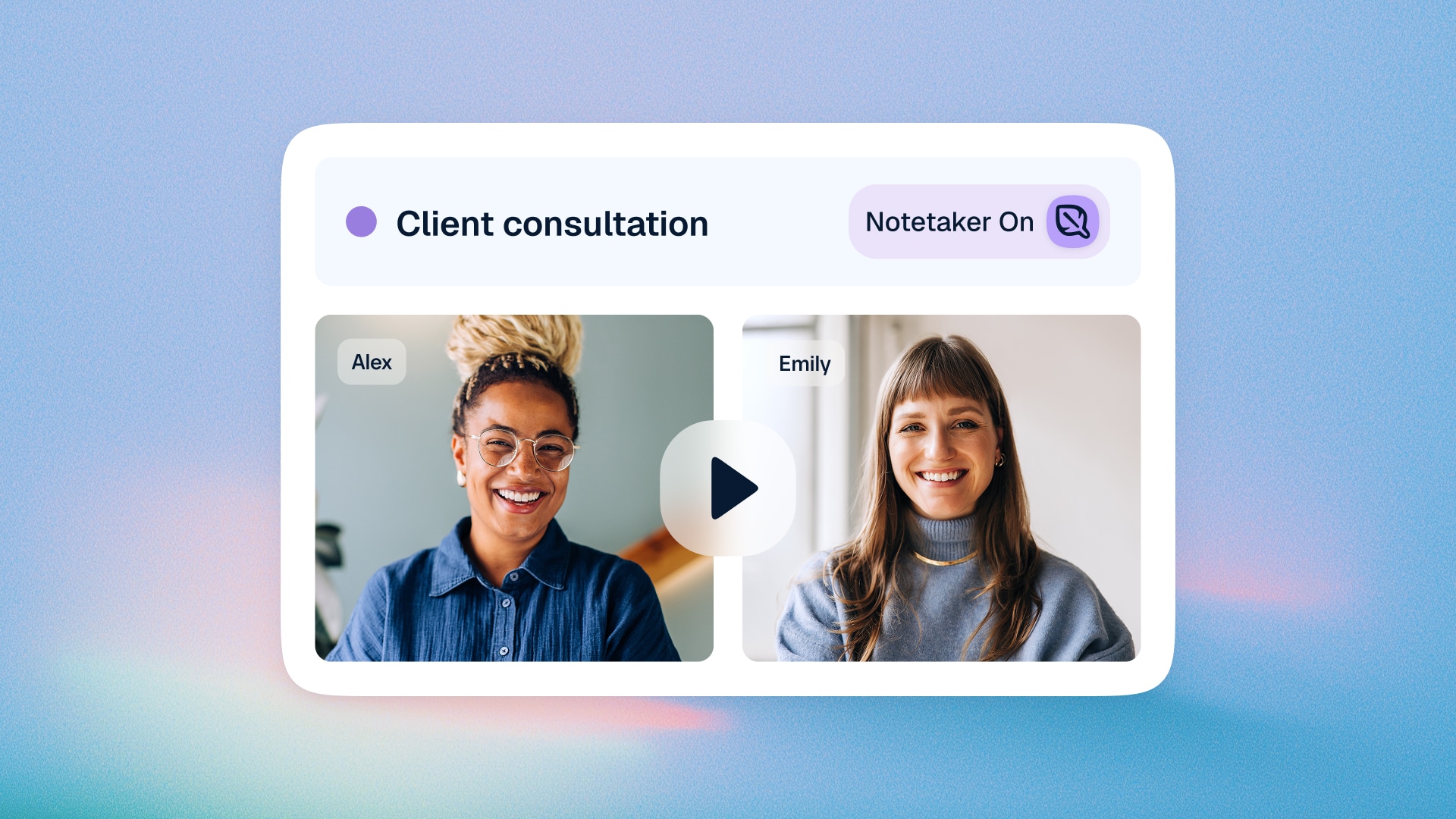
With Calendly Notetaker, you don’t have to choose between taking good notes and being present. Notetaker automatically records and transcribes the meeting, so you can give the conversation your undivided attention. Then, Notetaker organizes all the details into a recap including a summary, transcript, and action items.
It feels like having a quiet assistant in the background, keeping track of everything so I don’t have to. I can focus on being present.


In this article, we’ll walk through what Calendly Notetaker is, how it works, and how client-facing professionals, recruiters, teams, and more use it to stay focused during meetings and move work forward after the conversation ends.
Note: Notetaker is currently available on Standard Plus and Teams Plus plans for English-language users.
What is Calendly Notetaker?
Calendly Notetaker is an AI meeting assistant that records, transcribes, and summarizes virtual meetings.
Notetaker can join meetings on Zoom, Google Meet, and Microsoft Teams — including meetings that aren’t booked through Calendly.
After a meeting, Notetaker immediately provides a recap that includes a summary, action items, a transcript, and a recording.
You can review the summary and action items for a quick overview or dive into the transcript and recording for more detail. Notetaker sends you the recap over email, and you can find all of your recaps in the Notetaker tab in your Calendly account.
Notetaker also drafts a ready-to-send follow-up email, so you can easily share the recap and action items with meeting attendees.
How does Calendly Notetaker work?
First, you’ll need to enable Notetaker. Once enabled, Notetaker will join all Zoom, Google Meet, and Microsoft Teams meetings scheduled on your connected calendar by default, but you can choose which meetings you want it to join. For example, you can turn Notetaker on or off for individual meetings, or set it to only join certain meeting types.
Here’s what happens when Notetaker is enabled for a meeting:
- The meeting host approves Notetaker before it joins, and attendees are notified that the meeting is being recorded. (That’s just good AI etiquette!)
- Notetaker joins the meeting as a participant (it’ll show up as “[Your Name]’s Calendly Notetaker”) and records the meeting.
- After the meeting ends, Notetaker transcribes the meeting and generates a meeting recap, which includes a summary of the discussion and a list of action items.
- Calendly sends you the recap via email and adds it to the Notetaker tab in your Calendly account, where you can review and share it.
You choose who has access to your recaps and can passcode-protect them, and Calendly never uses your recaps or data to train AI models.
For detailed setup instructions, plus Notetaker FAQs, check out the Help Center.
Why use Calendly’s built-in AI notetaker vs. a separate tool?
Calendly has all of the meeting context you need in one place: who the meeting is with, what you’re meeting about, and the relationship history around it.
Notetaker recaps automatically get added to contact profiles in Calendly. Let’s say you’re prepping for a meeting with Dave, a recurring client. From Dave’s profile in the Contacts tab, you can see your entire history with Dave, including all of the recaps from your past meetings, giving you all the context you need going into your next conversation.
If you need to remember a specific meeting detail, or speed up meeting prep, you can ask Callie, Calendly’s AI assistant. Just click Ask Callie to open an interactive chat, then ask something like, “what did Dave and I decide about pricing last week?” No need to dig through notes on your own — Callie searches all of your meeting history, recaps, and contact profiles to answer your questions ASAP.
Plus, you already connect your calendar to Calendly for scheduling, so you don’t need to set up an additional tool or extra integrations. Once Notetaker is enabled, you can have it join any of the meetings on your connected calendar, even if they weren’t booked through Calendly.
I’ve tried other AI tools, but Notetaker is built into Calendly — no extra steps. It saves time and makes it easier to act on what matters right after the meeting.
With scheduling, meeting details, recaps, and contact history all in Calendly, there’s no need to manually connect the dots or dig for details across tools. And if you do use other tools, no worries; you can set up Notetaker to automatically send recaps to HubSpot or Salesforce, and connect other apps via Zapier.
How do people use Notetaker?
Notetaker is useful for any conversation where you’ll need to remember important details, decisions, or next steps, but don’t want to miss out on the conversation and connection because you’re distracted by taking notes. Here are a few examples.
Client meetings and sales calls
Client-facing professionals and sales teams use Notetaker to capture details they’ll need later, like decisions about pricing and scope, or client goals and objections. Having those details on hand makes it easier to write a sales follow-up email, put together a proposal, prepare for the next call, or bring a teammate up to speed.
Candidate interviews
When you’re interviewing a lot of candidates, it can be hard to keep every conversation straight. Recruiters and hiring teams can look back at recaps instead of relying on memory, and share recordings with teammates who didn’t get a chance to interview the candidate themselves.
For interviews, the ability to revisit the recording has changed everything. Instead of relying on impressions, I can rewatch and evaluate fairly and thoroughly. That alone has cut my review time in half and given me more confidence in hiring decisions.
Coaching and consulting sessions
Coaches, consultants, and tutors use Notetaker to be fully present with clients while still capturing important details.
Providers can use recaps to remember where they left off with each client before the next session. If coaches or tutors assign “homework,” Notetaker captures those action items, so clients know what to work on between sessions. Plus, session recordings can be useful resources for clients who want to revisit past lessons or trainings.
I’m not thinking about what I need to write down or worried about missing something. I’m just there, fully focused on the person in front of me.


Team meetings
For internal team meetings, recaps create a clear record of decisions and next steps, so everyone's on the same page. That’s especially helpful when you’re working on a complex project, coordinating lots of stakeholders, or trying to keep a fast-moving project on track. Action items make it easy to see who owns what, and teammates who miss the meeting can use the recap to catch up.
Get more out of every meeting with Calendly Notetaker
When Notetaker handles all of the work of capturing the discussion and identifying next steps, you can stay focused on the conversation at hand, which is a better experience for you and whoever you’re meeting with.
After all, if your business runs on meetings, that means it runs on connecting with people — and that’s a whole lot easier when you’re able to give them your full attention.
I’ve always taken my own notes, but I trust Notetaker because it’s built by Calendly. The summaries and action items are spot-on, so I can stay present and keep things moving.


Notetaker is available to English-language users on the Standard Plus and Teams Plus plans. It's also available on the Enterprise plan as an add-on.
Already a Calendly user? Get started with Notetaker today, or learn more in the Help Center.
New to Calendly? Sign up for a free 14-day trial to get started.
Get started with Calendly
Ready to make meetings easier than ever?